Modern televisions include useful accessibility features, but they are not always easy to find. Whether you want clearer dialogue, larger on-screen text or easier navigation, a few settings can make everyday viewing more comfortable. This guide explains what to look for on a smart TV and when a setup adjustment may help.
Start with the accessibility menu
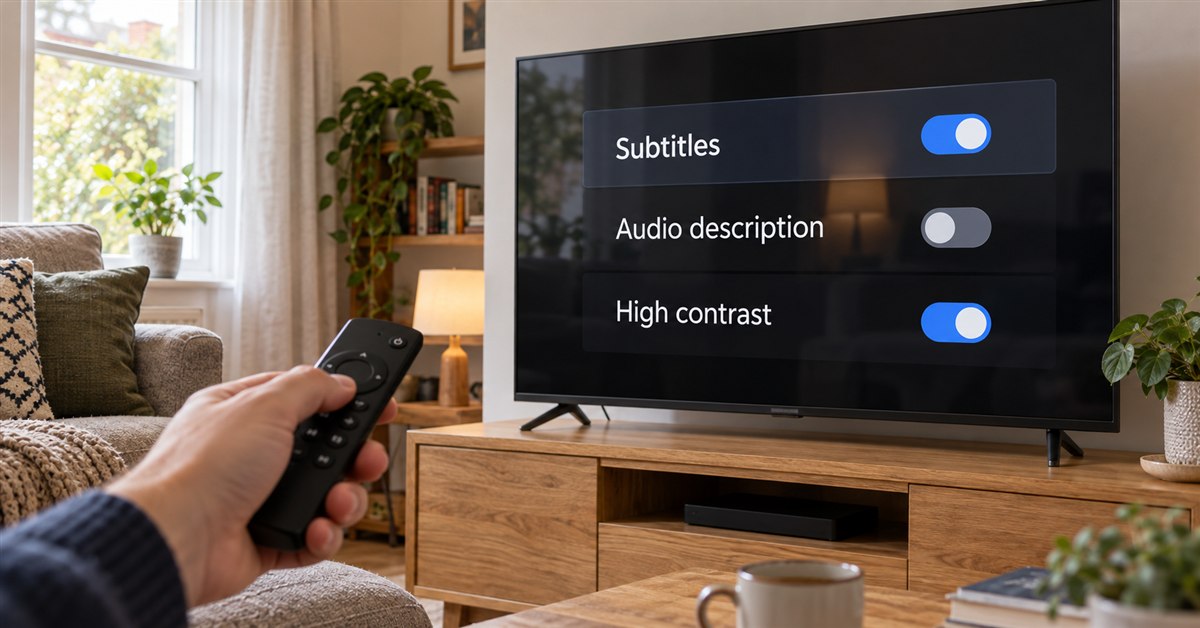
Open your television’s Settings menu and look for Accessibility, General, System or All Settings. Menu names vary by manufacturer and model. Some features apply across the television, while others are controlled by the broadcaster, streaming app or connected device.
Before changing several options, note your existing settings. Test one change at a time with a familiar programme so you can tell whether it improves the experience.
Turn on subtitles and captions
Subtitles display dialogue and, depending on the service, may also identify speakers or important sounds. They are particularly useful when watching in a noisy room or when voices are difficult to follow.
- Look for a subtitles or captions button on the remote or within the programme player.
- For Freeview channels, check the TV’s broadcast subtitle settings.
- For streaming, open the app’s audio and subtitle menu during playback.
- Where available, adjust subtitle size, contrast and background to suit the room.
Subtitle availability differs between programmes and services. Turning subtitles on in the television’s main menu may not automatically enable them inside every app.
Understand audio description
Audio description is an additional spoken narration that describes important visual action when the programme provides it. It is separate from louder dialogue or a soundbar’s voice-enhancement mode.
Look for an Audio Description or AD setting in the programme guide, audio options or accessibility menu. If narration appears unexpectedly, check whether this setting has been enabled on the television, set-top box or streaming app.
Make menus easier to read
Small labels and busy home screens can make a smart TV awkward to use. Depending on the model, accessibility options may include enlarged text, high-contrast menus, magnification, voice guidance or a screen reader that announces menu items.
Try the television’s built-in options before moving it closer to the seating area. A comfortable viewing position still matters: our TV size and viewing distance guide explains the planning considerations.
Improve speech clarity without losing the rest of the soundtrack
Not every difficulty hearing dialogue is caused by the television’s volume. Background music, room acoustics and the audio mix can make voices harder to distinguish.
- Try a dialogue, clear-voice or speech-enhancement setting if your TV offers one.
- Compare Standard and other sound modes using the same scene.
- Check whether a connected soundbar has its own voice setting.
- Avoid turning on multiple aggressive processing modes at once; they may make the sound unnatural.
If a soundbar is connected, check the audio output setting and connection before making repeated changes. Our guides to HDMI ARC and eARC and TV lip-sync problems cover common setup issues.
Check the remote control and input layout
Many households use several devices: a television, a streaming stick, a satellite receiver and perhaps a soundbar. Switching between them can be confusing when each has its own remote and settings.
Give inputs clear names where supported, remove unused shortcuts from the home screen if possible and keep the most frequently used apps easy to reach. Some televisions allow voice commands, simplified remotes or shortcut buttons, but support varies by device and account.
When a feature appears to be missing
First confirm whether the programme or app actually supports it. Then check for a software update through the manufacturer’s normal settings. Restarting the television and connected device may also clear a temporary menu issue.
Remember that Freeview, Freesat, streaming apps and HDMI devices can each manage subtitles and audio settings differently. The setting you need may be on the source device rather than the screen.
Plan accessibility as part of a new TV installation
A comfortable installation is about more than attaching a screen to the wall. Screen height, glare, remote-control access, soundbar position and sensible cable routing all affect how easily the television can be used.
For a new setup, review our TV mounting height guide and hidden-cable planning advice. Keep controls and ports accessible for future adjustments.
Need help with your television setup?
TV & Aerial Installer Newcastle provides TV installation and setup services across its stated Northumberland service area. Mick Stocker brings 23 years of audiovisual experience. If you are planning a new television, wall mounting or a more straightforward home entertainment setup, visit the website to discuss your requirements.